Home Shop My Instagram TPT STORE tpt Facebook Instagram Pinterest Image Map
Showing posts with label Technology. Show all posts

February 26, 2018

Using Qball in my First Grade Classroom: A Throwable, Wireless Microphone


I love integrating technology and movement into my classroom as much as possible. Having a room of 20-something 6-year-olds has taught me that I must find creative ways to integrate both on a daily basis, however, these products must be durable (I have enough cracked iPads to prove this)! 

When I saw Qball online, I knew it would be perfect for my classroom. After having my Qball for about a week now, here are a few things I learned. This is an unbiased, unsponsored post! 


I LOVE using Qball in morning meeting. It's a perfect way to highlight an individual speaker. It encourages my quieter students to share their thoughts. I take attendance each day asking how my students feel as they begin the day. It's a great way for students to share their concerns and excitements about the day. I'm able to gauge the general vibe of my classroom this way. 


I love using the Qball during whole-group lessons! Students share answers and discuss various topics using this microphone. They are so much more engaged once I take the Qball out because they all want a chance to use it. Answers are amplified throughout the room to ensure each person can hear the speaker. This is especially useful because I have flexible seating. 


Pros:
* Qball makes every seat a front row seat
* It's super engaging
* It makes quiet voices louder
* It encourages movement 
* Super durable microphone 
* You can hook the microphone to your shirt and use it while teaching. 

Cons:
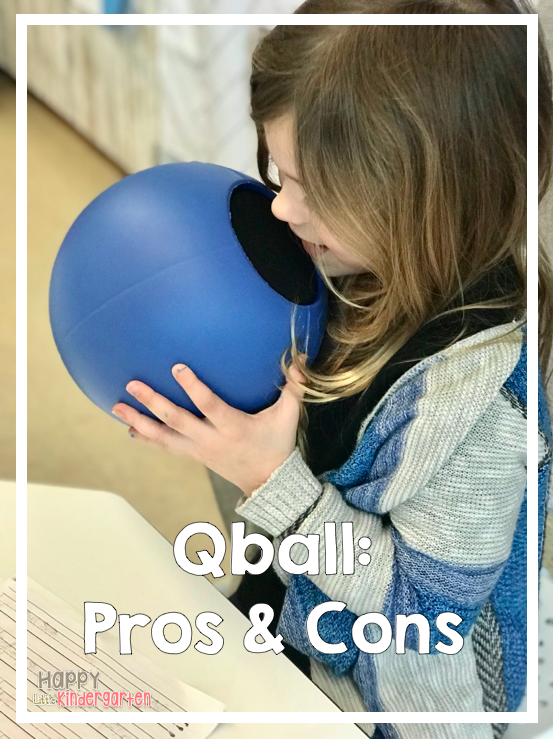
* Students have tendency to put their mouths directly on the microphone part. Germ City!
* It's expensive ($179)


I did only found 1 coupon code. Thought I'd share:
Free Shipping - SHRKTNK


September 16, 2017

3 Tips to Get Your Students Signing into Chromebooks Independently


Technology in the classroom is great, but if not introduced properly, it can sometimes prove to be more of a nuisance than a valuable learning tool.  Here are a few tips for how to get your students started with the most difficult task.... signing in! 

1. Practice mouse & trackpad skills: I begin by allowing my students to sign in as a guest. I pull up some games that help teach students how to use the mouse or trackpad. This is important because many children are used to tablets and smartphones and assume all screens are touch screen. I recommend the website OWLIE BOO

2. Incorporate a 'Technology Coordinator' into your classroom jobs:  We all have them; students who know more about technology than even the most tech-savy teacher. Use them. I instruct students to go to these students before coming to me with technology help. 

3. Use visuals: When providing usernames and passwords, use visuals to not only show students their passwords, but where they should enter the information. I use lanyards and put their sign in cards inside the lanyard. You can get my editable Chromebook sign in cards HERE


October 8, 2015

It's Fall Ya'll! FREEBIE Friday & Linky Party!


There's nothing like those first few days of fall! Fall is the perfect time to explore nature with your students and investigate the changing seasons. I made a QR code/fast finishers bundle for students that explores the changing world through open-ended questions. I like using this with my gifted and talented group. 


Freebie Fridays

September 5, 2015

Implementing Technology Using QR Codes in my Kindergarten Classroom!


Let's face it... Our students LOVE tablets, iPads, iPods, basically anything involving technology. It is an important part of our schools today and it is more important than ever that we teach our students how to use technology in their day-to-day lives. I designed these QR Sight Word Activities as a way to reinforce important literacy skills while also highlighting technology skills. I use project boards and rubber cement to make a center area. 

Students use my iPod Touch to scan the QR codes. I was supervised at how easily they learned to use it! They're pros now! :)


 Download HERE


This center is a BIG favorite! Students scan the QR codes, listen to the sight word, and then match the sight word to the correct puzzle piece. It works great for fast finishers!


Related Posts Plugin for WordPress, Blogger...